

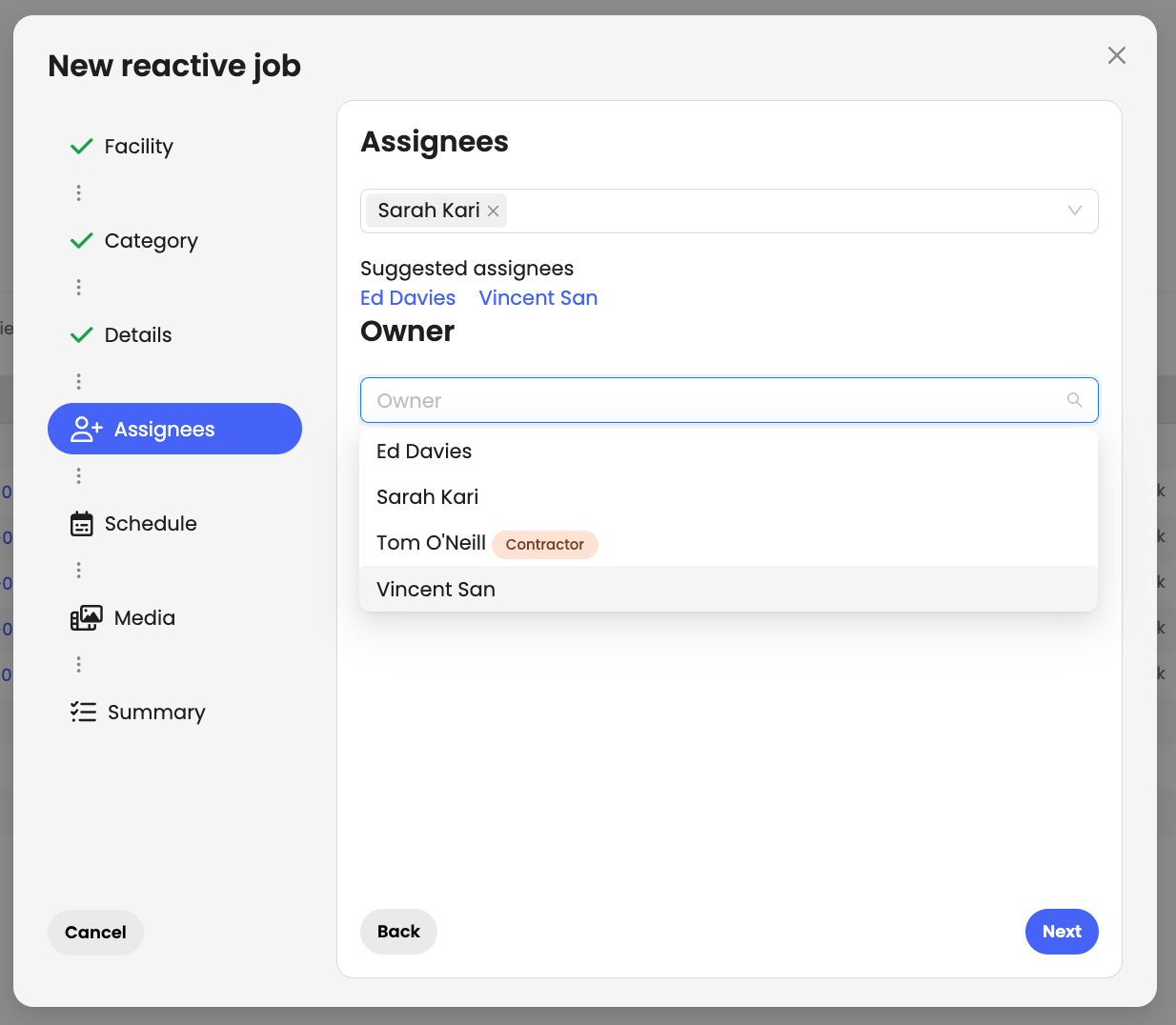
You can now assign an owner when creating or updating a job, making it clear who is ultimately responsible for its delivery. Ownership remains visible even when the job is assigned to other team members.
Stay on top of all activities at your facility wherever you are. The teams mobile app now displays recently opened and closed jobs, giving you a quick snapshot of what's happening in every premise.

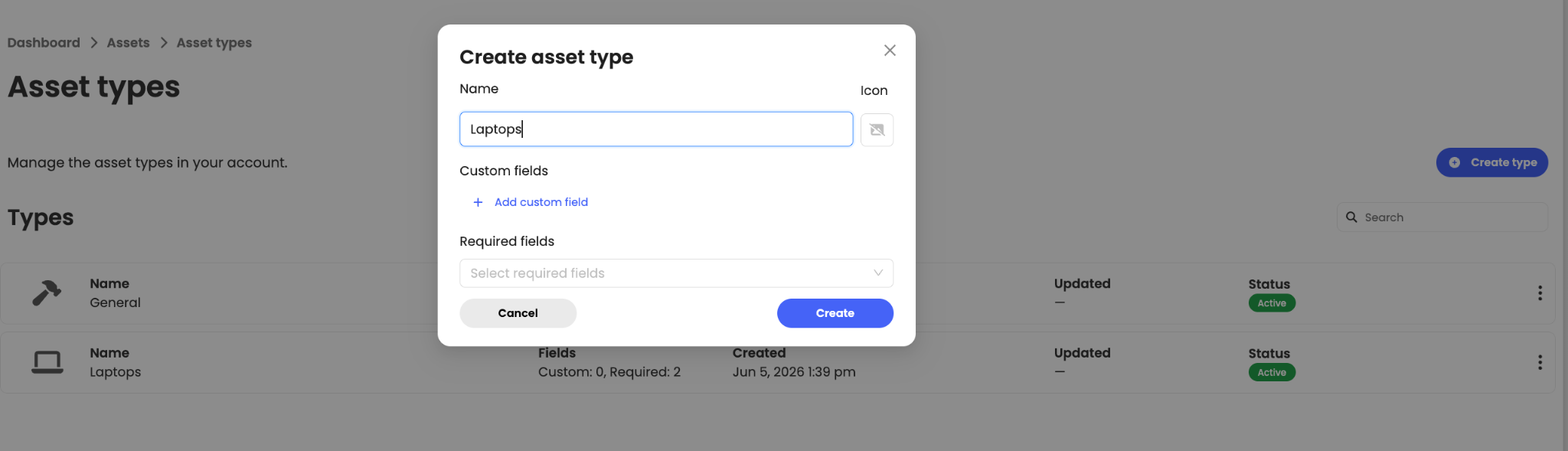
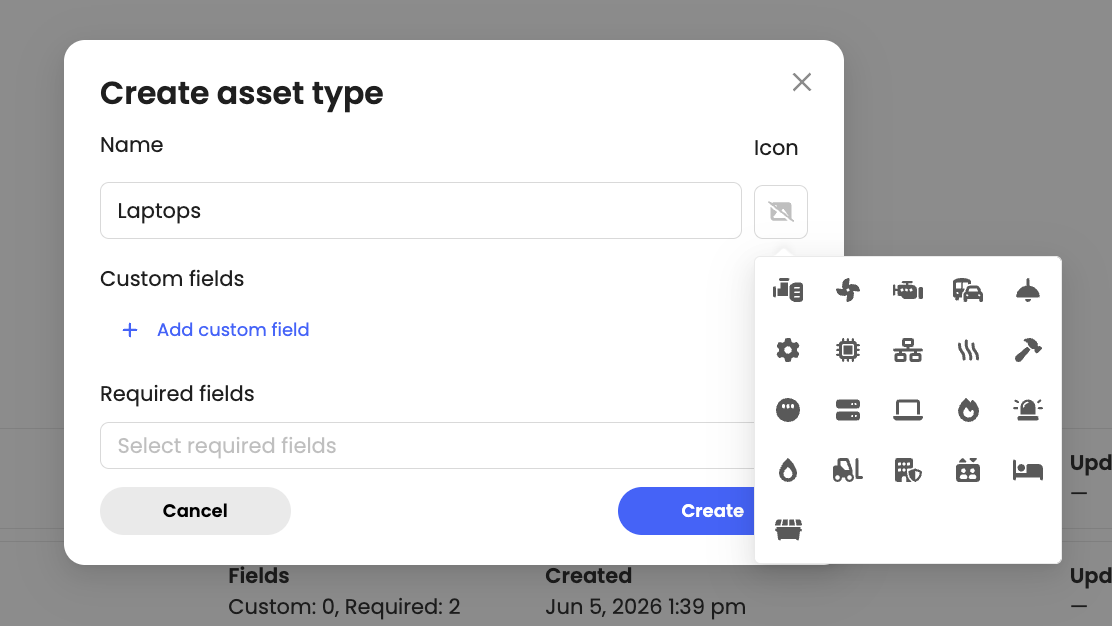
We've introduced custom asset types, allowing you to tailor your asset register to the equipment and assets you manage. When creating an asset type, you can select a dedicated icon, add custom fields, and define which fields are mandatory for that category. This ensures the right information is captured every time an asset is added, helping maintain accurate, consistent, and structured asset records across your organisation.
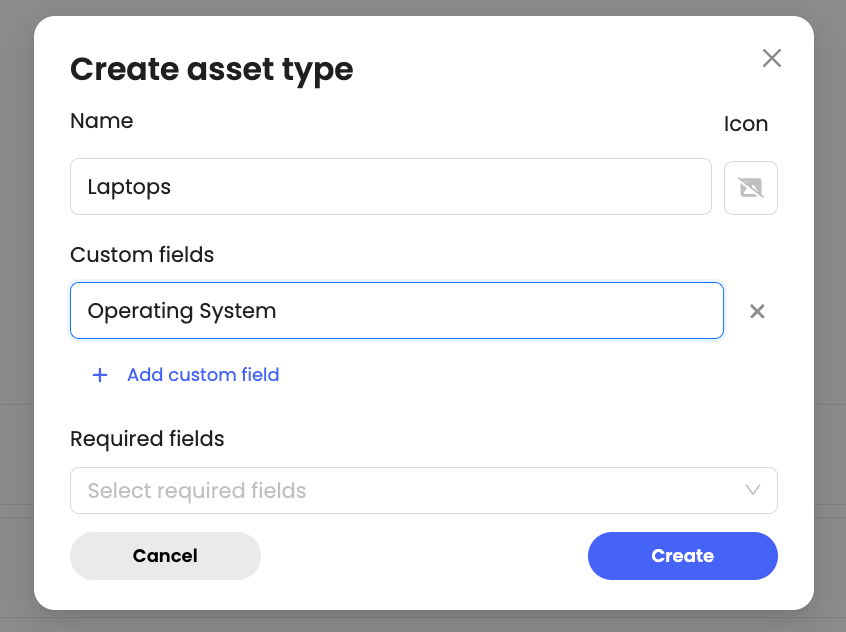
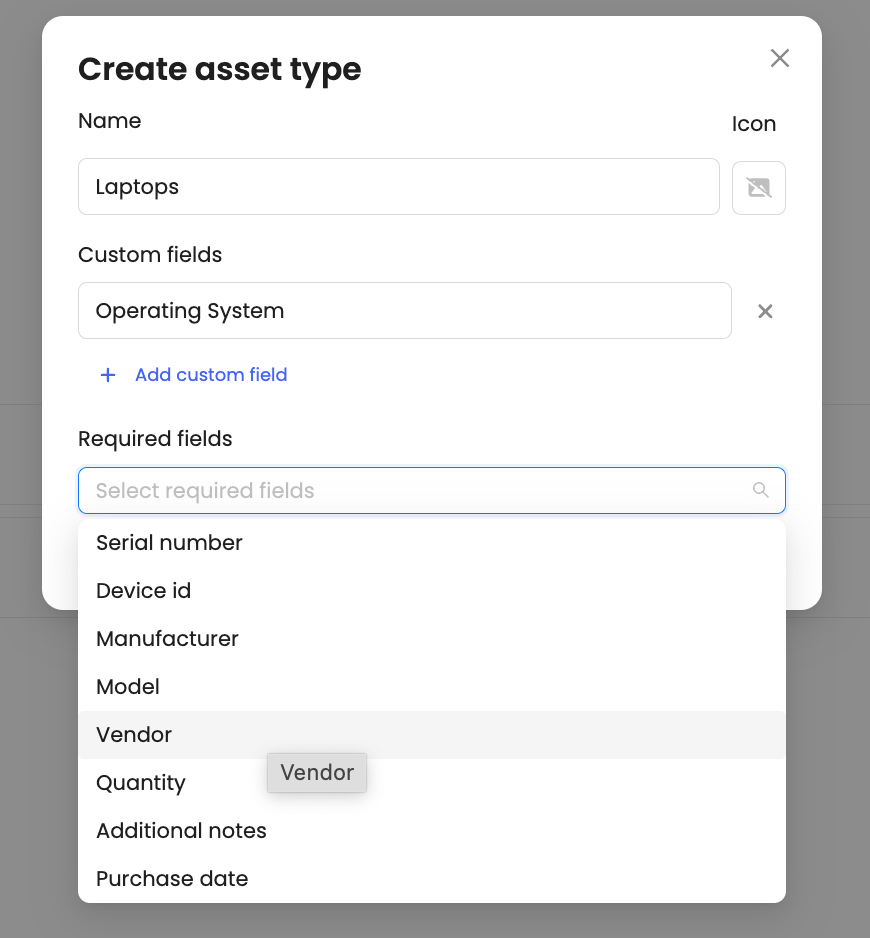
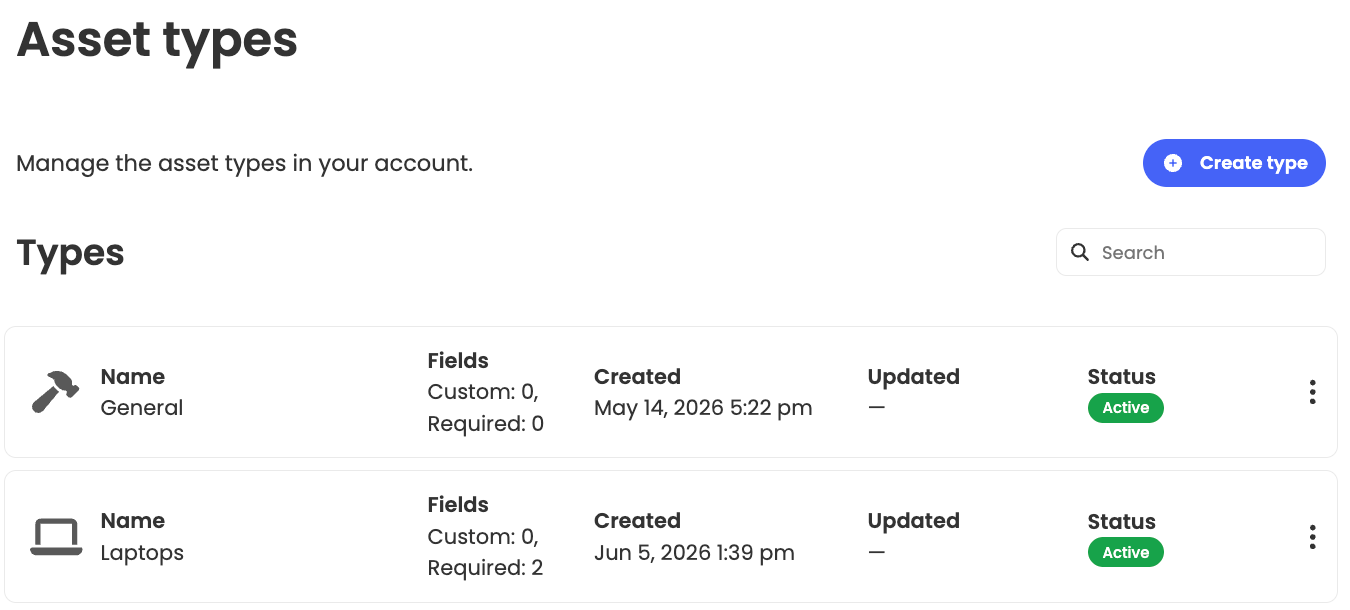
Once configured, the relevant fields will automatically appear whenever that asset type is selected, streamlining data entry and improving consistency across your asset register.
This article just scratches the surface of what’s possible with FaultFixers. For more information, check out our Help Center.
And if you’re not yet a FaultFixers customer and want to see what it can do for your organisation, book a demo today.


